
The Axsy Mobile App's Flow Engine supports a custom Axsy Component for Deep Linking, allowing users to be redirected to another application on the device as a part of a Flow.
The Axsy Mobile App supports the x-callback-url specification, see their documentation here for more information. Other schemes are also supported.
NOTE: Not all applications on your device may support Deep Linking so make sure to check their documentation.
Adding a Deep Link in Flow
Included in Axsy's Managed Package is a custom Deep Link Flow Component. It is accessible in the Salesforce Flow Builder, and can be added to any Screen Flow as seen in Figure 1, or as a Element within a Flow (Apex Action) as shown in Figure 2. Both of these implementations will take in the same arguments, however the Apex Action will prevent the flow from continuing if the Deep Link was cancelled or unsuccessful.

Figure 1 - Deep Link in Screen Flow Designer

Figure 2 - Deep Link Element in Flow Builder
In addition to the API Name field, the Deep Link Component can also take in more parameters:
(* = Required Field)
| Parameter | Description |
| Scheme * | The Target Application that will be opened after clicking the Deep Link |
| Action | The action taken by the Target Application. Not all Deep Links will require an action, please refer to the applications' documentation for more information |
| Host | The host of the Deep Link. For example, 'x-callback-url' |
| Icon Name | Icon Displayed along with Deep Link. This is taken from the ionic icon library |
| Label | The label that gets displayed on the deep link screen component |
| Parameters | Any additional information that should be passed into the Target Application. The parameters can usually be found in the Target Application's Documentation. If there is more than one parameter, separate them with the '&' character. Parameters should not be URL encoded. |
| Show Success Parameter | The value that will be displayed on return from a Deep Link. This parameter can either be a text value, variable or formula. This will default to either: "Successful Deep Link", "Deep Link Cancelled" or "Deep Link Error" depending on the result of the Deep Link. This parameter only exists on the Screen Component. |
| Source | The friendly name of the application that the Deep Link is run from (this will default to "Axsy Mobile" |
| x-success URL | For 3rd party apps which follow the x-callback-url scheme, this is the URL they should follow on success. By default, you will be returned to Axsy Mobile. If populated, this value will be appended on the end of the URL even if not using the x-callback scheme |
| x-cancel URL | For 3rd party apps which follow the x-callback-url scheme, this is the URL they should follow on cancellation. By default, you will be returned to Axsy Mobile. If populated, this value will be appended on the end of the URL even if not using the x-callback scheme |
| x-error URL | For 3rd party apps which follow the x-callback-url scheme, this is the URL they should follow on error. By default, you will be returned to Axsy Mobile. If populated, this value will be appended on the end of the URL even if not using the x-callback scheme |
Table 1 - Deep Link Component Fields
Example of Deep Linking in Flows
The Figures below show an example of a working Deep Link in a Screen Flow. This has been created in accordance with the Google Maps Documentation. In this example, the user will be redirected to the Google Maps app to view a given location (in this case "Buckingham Palace")
Populated Parameters:
Not all fields will be populated, if they are not explicitly mentioned here assume they are blank/default.
| Parameters | Value |
| Scheme | comgooglemaps-x-callback |
| Host | x-callback-url |
| Icon Name | pin-outline |
| Label | Launch Google Maps |
| Parameters | q="Buckingham Palace"¢er="51.5014,0.1419"&mapmode="standard" |
Table 2 - Deep Link Component Parameters Populated

Figure 3 - Deep Link in Flow in Axsy Mobile

Figure 4 - Redirect to Google Maps caused by Deep Link
2-Way Deep Linking
In addition to redirecting users to an external application, the Deep Link Component also supports two-way deep linking. This enables the linked application to return data back into the Axsy Mobile App (provided the linked app supports this behaviour).
Redirect Actions
There are 3 types of actions that can trigger a redirect back to the Axsy Mobile App. These may not all be supported by the external app, please refer to their documentation:
- Error - the action has not completed successfully
- Cancel - indicates that the action in the external app was cancelled before completion
- Success - the action completed successfully in the external app
Based on the action, a return parameter may be passed back to the Axsy Mobile App. The flow can be configured to save the value of these parameters as flow variables or fields, so they can be used as a part of the flow.
Configuration Steps
- Determine Return Parameters in the External App
- The external application defines which parameters are returned.
- Common examples include
- errorCode, errorMessage, cancelled, successText
- Note: These variables names depend on the external app's own deep linking scheme and are not defined by Axsy
- If not using the x-callback-url scheme and need to define a callback url to return you to the running flow, it must be: axsymobile:// with no additions.
- Create Matching Variables in the Flow
- Create Flow Variables or Fields whose names exactly match the names of the return parameters from the external app.
- The URL returned by the linked app will be surfaced in the flow diagnostic logs.
- All variables should be set to Text type.
- Assign Output Resource Variables in the Deep Link Element
- Ensure "Manually Assign Variables (advanced)" is ticked. (See Figure 5,6,7)
- Map the relevant flow variables that capture error and success details to the corresponding output fields in the Deep Link Element.
- Any additional return parameters included in the URL will automatically populate flow variables with matching names.
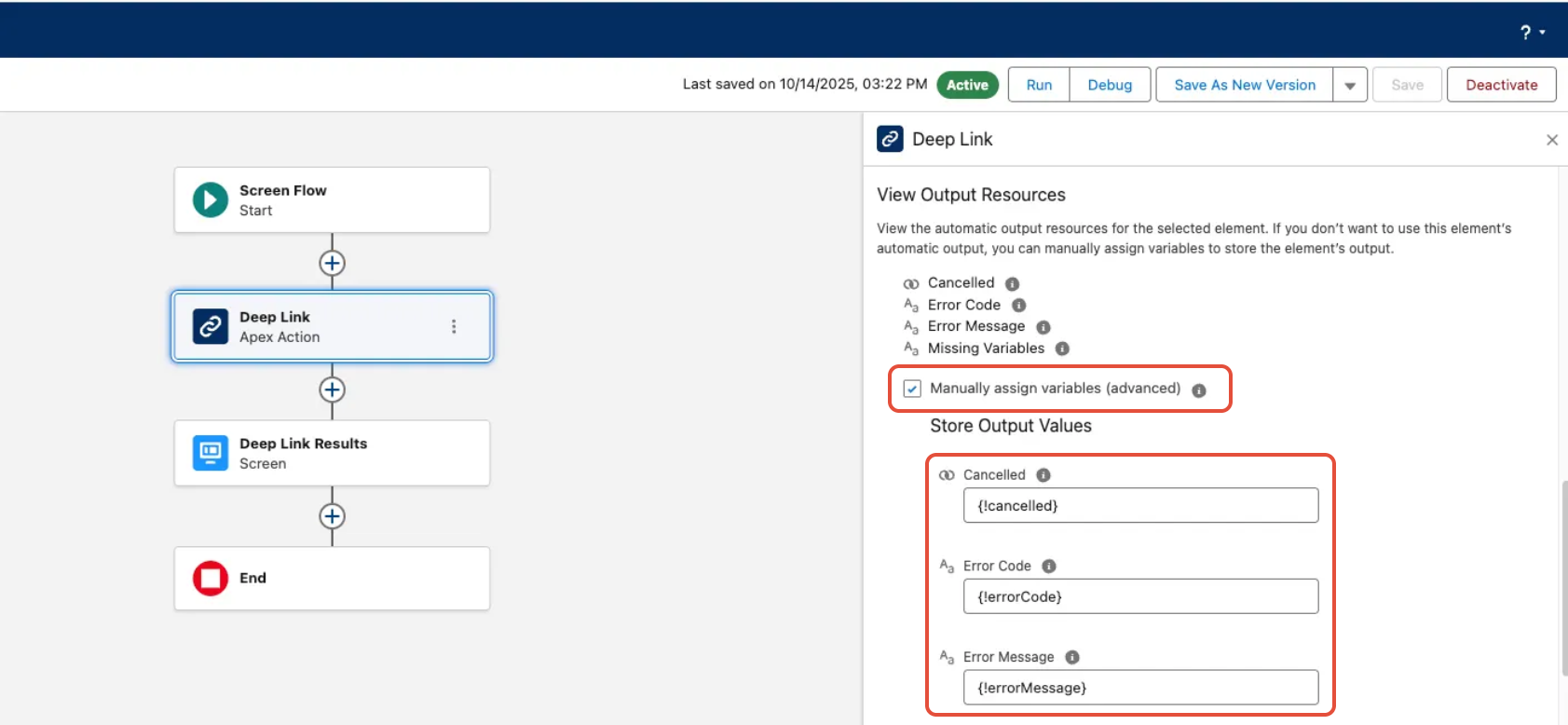
Figure 5 - Assign Output Resources in Flow Component
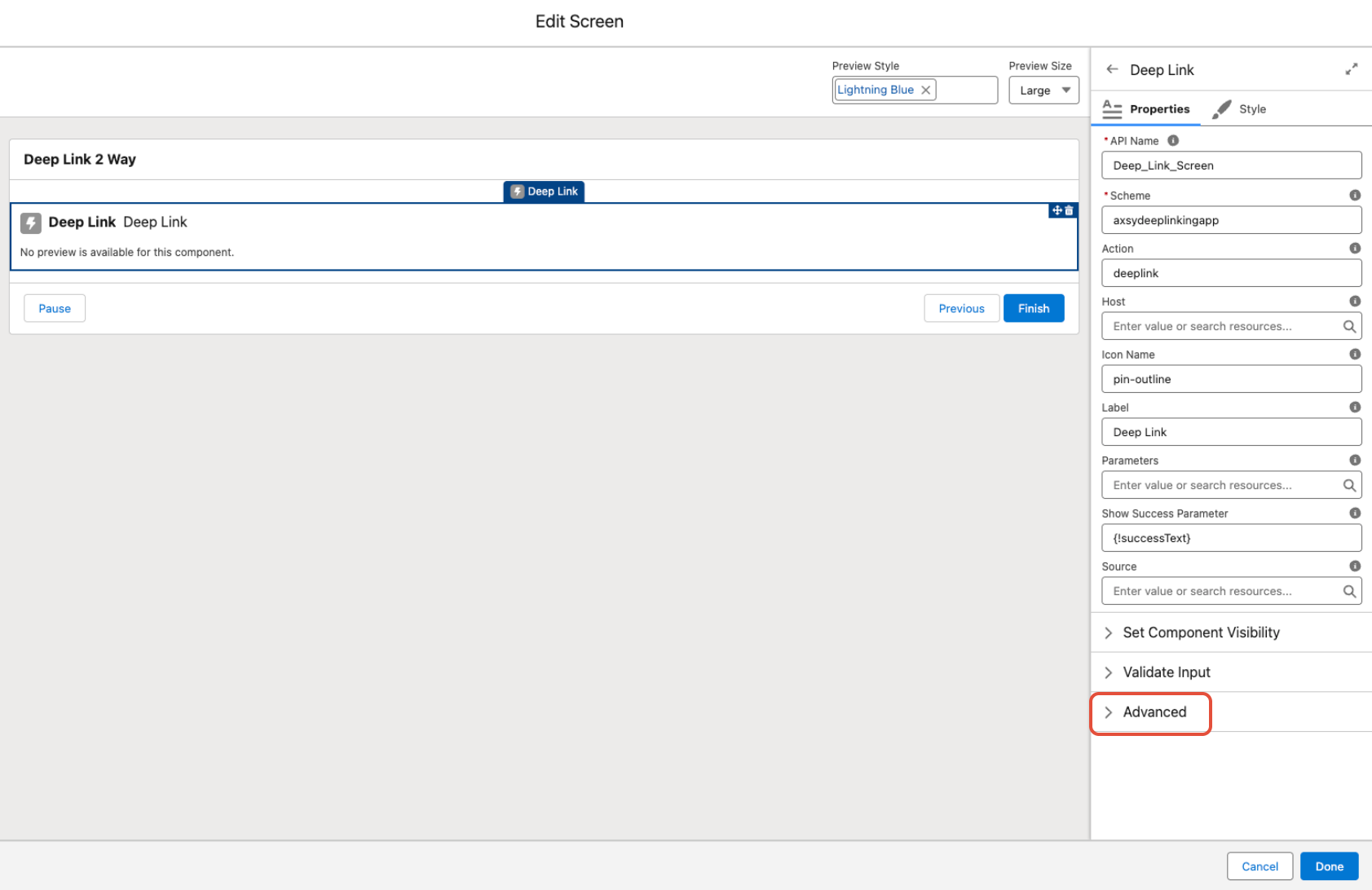
Figure 6 - Advanced Settings in Screen Flow Deep Link Component
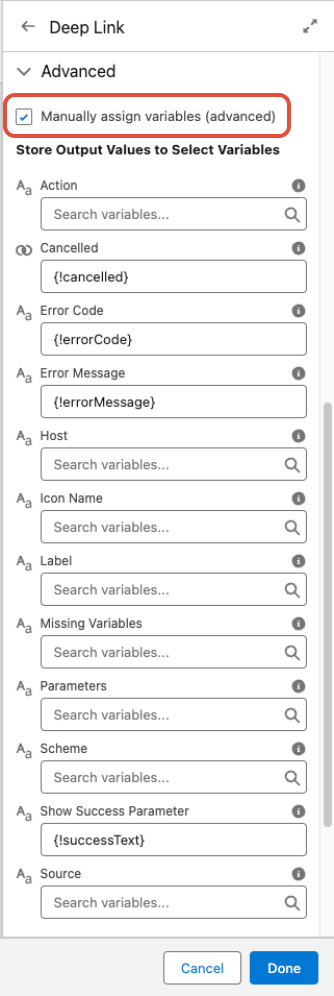
Figure 7 - Example Populated Advanced Settings, Deep Link Screen Flow Component